The database editor
The editor runs against your database over the internal network, so you can read data and run queries without exposing the instance or handing a connection string to a desktop client.
Opening it
From the database, choose Studio, or Open editor on the overview.
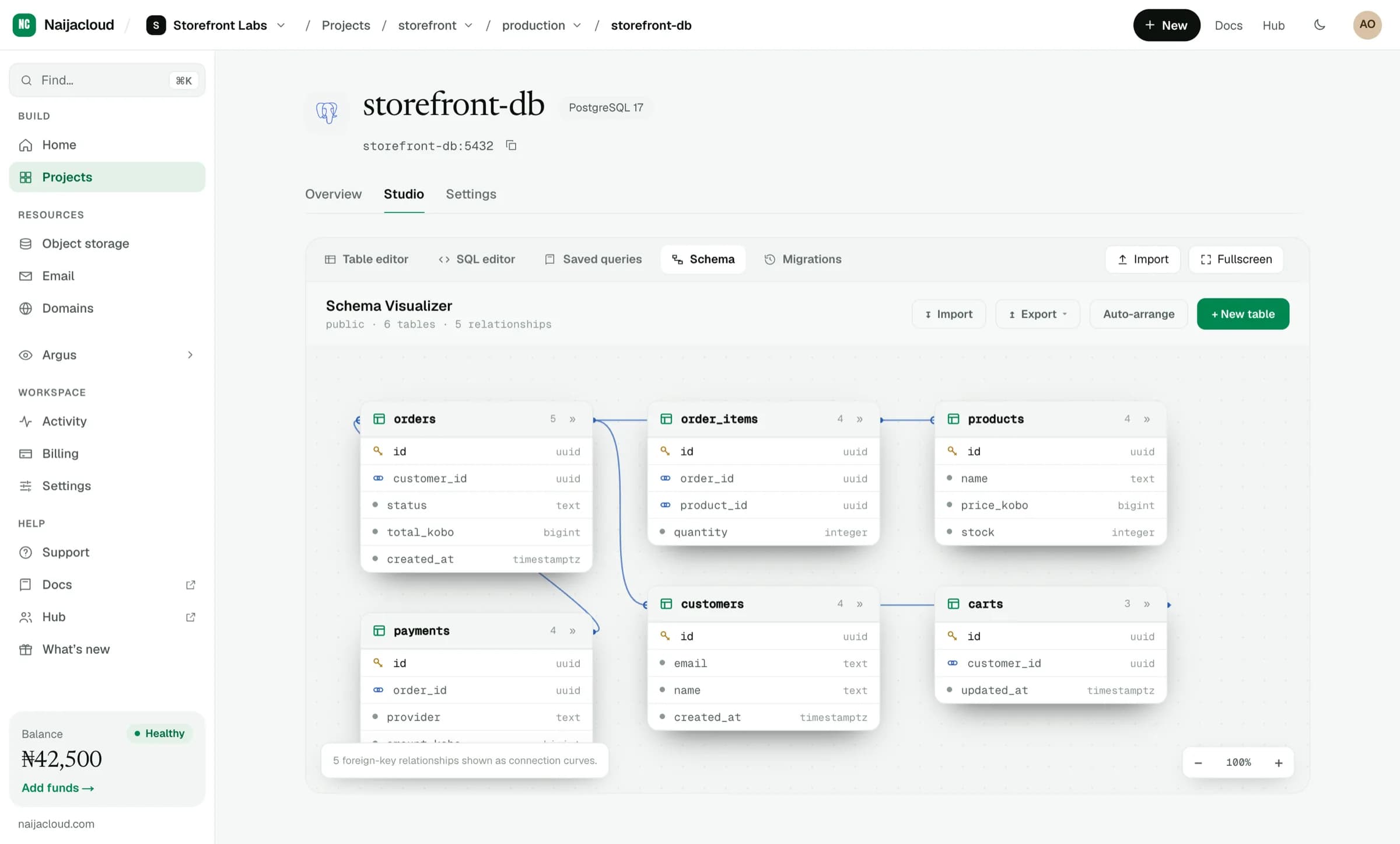
Because the connection is made for you, there is no connection string to copy around and no public endpoint to open.
What you can do
- Browse tables. Read rows, sort, filter and page through data.
- Edit rows. Change a value in place for the small corrections that would otherwise need a one-off script.
- Run SQL. Write a query and see results, with more than one query tab open at once.
- See the schema. The visualiser lays out tables and the foreign keys between them. It is the fastest way to understand a database you did not design.
- Import and export. Move data in or out as CSV.
Running a query
select u.full_name, count(o.id) as orders, sum(o.total) as spent
from orders o
join users u on o.user_id = u.id
where o.status = 'paid'
group by u.full_name
order by spent desc
limit 10;
Results appear below the editor and can be exported.
The editor is connected to a real database. An update or delete without
a where clause will do exactly what you asked. On a production database,
select the rows first, confirm the count, then write the mutation.
Good uses for it
- Checking whether a deploy actually wrote what you expected.
- Reading the schema before writing a migration.
- Fixing a single bad row.
- Pulling a quick figure someone asked for.
For anything repeated, like a nightly aggregate or a scheduled cleanup, put it in a cron job rather than running it by hand.